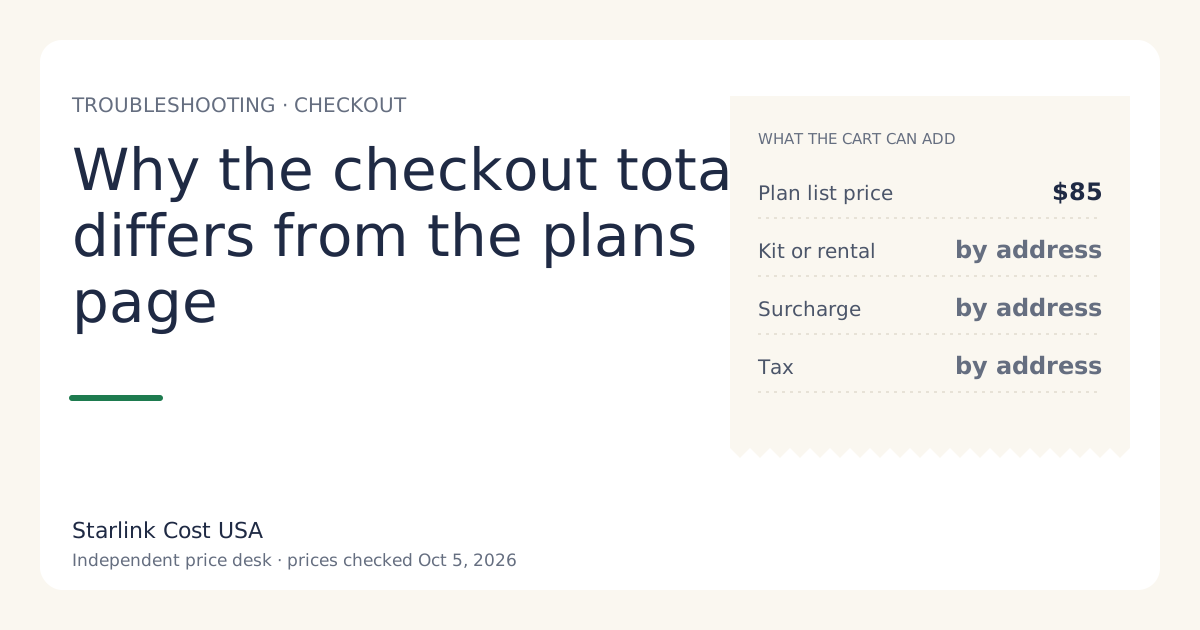
The plans page shows national list prices; checkout shows the price for your service address. The difference almost always comes from five lines: whether your address gets a kit to buy or a rental, a regional promotional price, a one-time demand surcharge in busy areas, sales tax and fees, and shipping. Figure out which line it is and you’ll know whether you can do anything about it.
The two screens show different things
The plans page has to show one price to everyone, so it shows the national list price for each plan, for example Residential 200 Mbps at $85/mo (checked Oct 5, 2026). It doesn’t know where the dish will go.
Checkout asks for your service address first. From then on, every number is for that address.
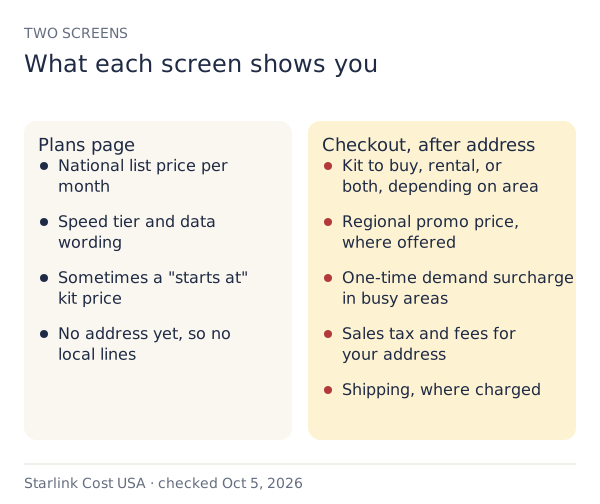
The five lines that explain the gap
1. Kit to buy, rental, or a regional kit price
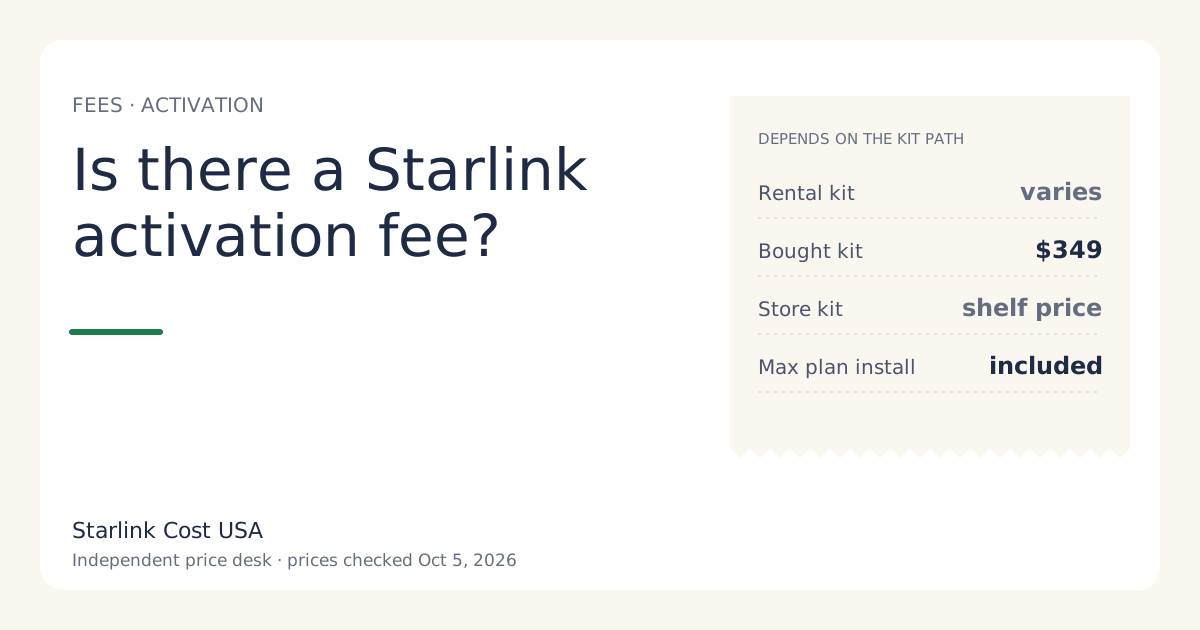
Not every address is offered the same hardware deal. Our price file notes that purchase of the $349 Standard kit isn’t offered at every address: some areas see rental only, or a regional discount. A rental replaces the kit price with a one-time activation fee (varies by location; shown at checkoutunverified) and, in some areas, a monthly rental fee (reported at $0/mo in select areas).
How to spot it: the hardware line says rental, shows an activation fee, or shows a kit price that isn’t $349.
2. A regional promotional price
Some areas see a lower promotional monthly price or a hardware discount. These are address-based and show only at checkout. They aren’t list-price changes, so they don’t appear in our price table.
How to spot it: the monthly line is lower than the plans page. Read whether the promo has an end date or a term attached. If it comes with a 12-month commitment, leaving early can bring a prorated 'change fee' if you leave a 12-month commitment offer early.
3. A one-time demand surcharge
In high-demand areas, checkout can add a one-time charge. Starlink’s support page describes the rules: one-time, in high-demand areas, when you buy, activate, change plan or move into one; refunded with a 30-day return. On the amount, our price file says: no official amount; depends on the addressunverified.
How to spot it: a separate one-time line on top of the hardware. It’s the single biggest reason two US addresses get very different totals. This site covers what a surcharge does to your cost, not where surcharges apply; the hidden fees guide explains the money side.
4. Sales tax and fees
Kit purchases and monthly service can both be taxed, at rates that depend on your state and county. The plans page can’t know your rate.
How to spot it: a line that’s a few percent of the total, labeled tax or fees.
5. Shipping
Our price file lists shipping as about $20 on rentals (reported); variesunverified. Look for a separate shipping line in the cart.
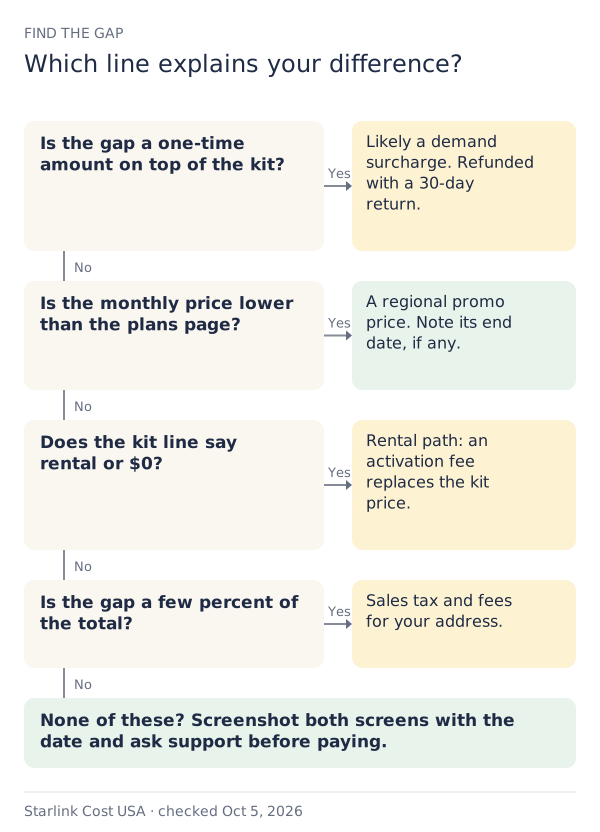
Worked example: reading a checkout
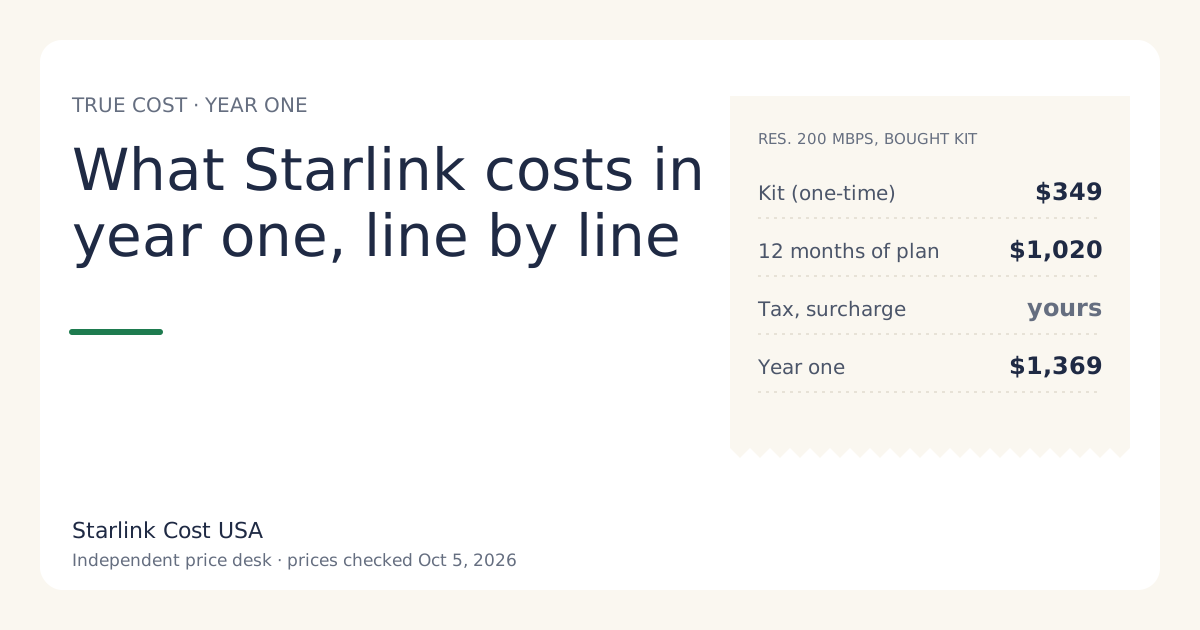
Say the plans page shows Residential 200 Mbps at $85/mo and a $349 kit. You expect to pay $349 today and $85 a month from activation.
Your checkout shows four lines instead (hypothetical layout, not a real quote):
| Checkout line | What it is | Can you change it? |
|---|---|---|
| Kit $349 | Hardware, matches the list price | Yes: rental or a store kit may be cheaper |
| One-time charge | Demand surcharge for your address | Only by not ordering now, or a different plan if checkout offers one |
| Tax | State and local | No |
| Shipping | Delivery | Sometimes: a store kit avoids it |
Add the surcharge to your year one in full. On a three-year view, divide it by 36 to see what it adds per month, and decide whether you’d still order. The calculator has a field for it.
Why your neighbor’s price isn’t yours
Two homes a mile apart can get different answers on rental availability, promos, surcharge and tax. Comparing totals with a friend tells you nothing reliable about your own.
Don’t enter a different service address to get a better price. Residential service is tied to the address you enter; using another one can leave you with service that doesn’t match where the dish is, and moving it later can bring the very surcharge you were trying to avoid. We never advise it.
What to do when the gap is too big
- Screenshot every checkout screen with the date. It’s your record, and the numbers can change.
- Try the other hardware path. If buying is offered and rental is too, compare both. Our rent vs buy guide shows when each wins.
- Price a store kit. A retailer’s shelf price can beat starlink.com. A store kit never carries starlink.com’s 30-day return terms, though; the store’s own rules apply. Compare them with the store kit vs starlink.com tool.
- Do the three-year math. A large one-time charge can still be fine over 36 months, or it can tip the answer to an alternative. Read when Starlink is the wrong buy.
- Ask support before paying if a line has no label you recognize.
If you already paid and the total surprises you
- Within 30 days of a starlink.com order: a kit returned undamaged gets full hardware refund if returned undamaged within 30 days, and the surcharge is refunded with a 30-day return per Starlink’s page.
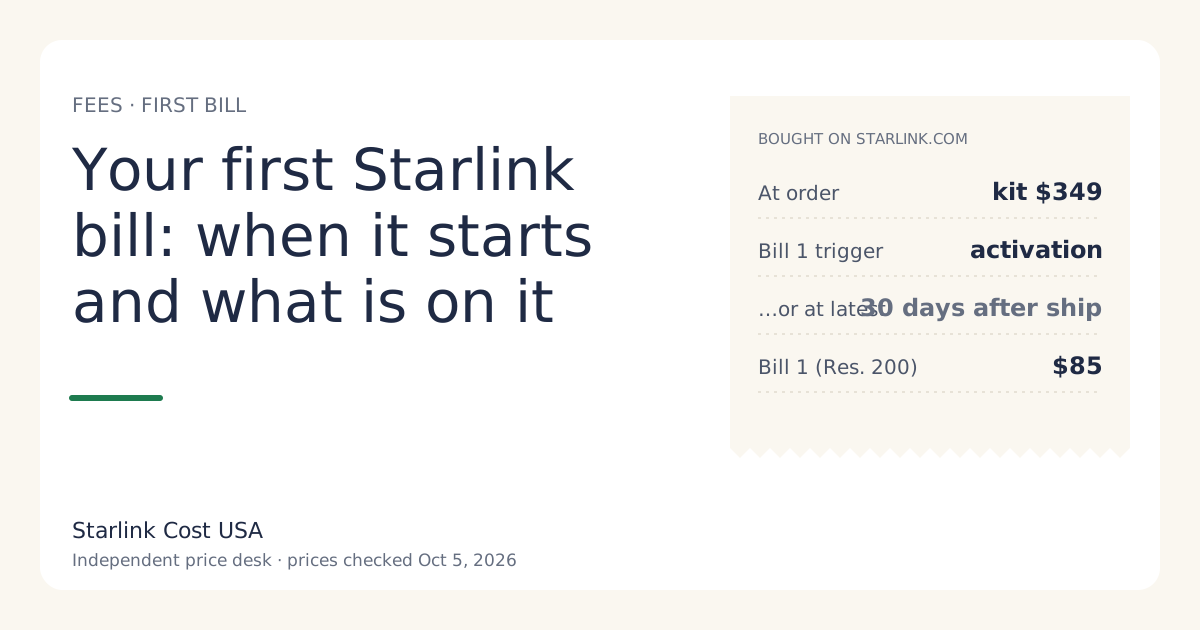
- After 30 days: read the invoice line by line. Our first-bill guide explains proration and when each charge lands.
Common mistakes
- Budgeting from the plans page alone. Use the checkout numbers.
- Treating a promo as permanent. Check its end date and any commitment.
- Forgetting that a plan change or a move can trigger a surcharge in busy areas, not just the first order.
- Paying, then comparing. Compare first; the 30-day window is a safety net, not a plan.
When the gap is in your favor
Sometimes checkout shows less than the plans page: a regional promo price, a discounted kit, or a rental with no monthly fee. Before celebrating, check three things: whether the promo ends after a set number of months (use the after-promo price in your three-year math), whether it comes with a 12-month commitment, and whether the lower hardware price is a rental you’ll have to return. A lower number with conditions can still be the right choice for you; just know the conditions.
What we don’t know
We don’t know your address’s kit options, promos, surcharge or tax. No public list of surcharge amounts by area exists that we’d trust, which is why the calculator asks you to type yours.
What to do next
Write down every checkout line, then enter the plan, hardware path, surcharge and tax rate in the calculator to get your real year-one and year-three totals. The before-you-order checklist has the full list of things to note.